Variable
The «Variable” block is used for operations with variables.
The block properties contain fields for selecting a variable and a setting block for the «Assign» operation. In the first field, a variable is selected through the drop-down list. If the drop-down list is empty when you click, it means that there are no variables in your script. Create it in the “Variables” area and then return to the settings of this block.
After specifying the variable to which the data in this block will be written, assign the required value to it by entering it in the «Assigned value» field.
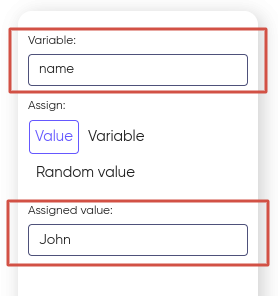
Either switch to the «Variable» tab and select another variable whose value will be assigned to the first Variable.
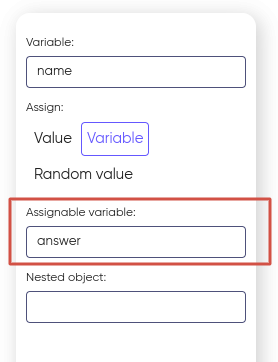
Nested object
The ‘Nested object’ setting is used to extract a certain object if some data structure is supposed to be transferred to a variable. Syntax of Java Script is used to extract this object.
For example, in HTTP request server sends to the variable ‘answer’ the following data structure:
{
	"name": "John",
	"surname": "Doe"
}
To extract from this structure «John» you can create a variable ‘name’, choose it in the settings of the ‘Variable’ block and assign ‘answer’ variable to it. In the field ‘Embedded object’ you can type ‘name’.
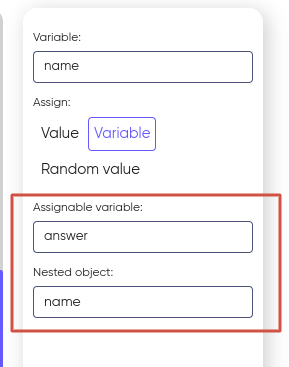
His way you will have value «John» saved to the variable ‘name’.
Below you can find more examples of how you can use the ‘Variable’ block.
For instance, if you want the robot to say ‘Hello’ after a subscriber answers the call, you can do the following steps. You can create a variable and name it ‘Hello’, then under the ‘Outgoing call’ block you can add the ‘Variable’ block that has a ‘Hello’ value assigned and then you can put the ‘Player’ block below it, where in the settings you can enter the variable ‘Hello’ into the text field.
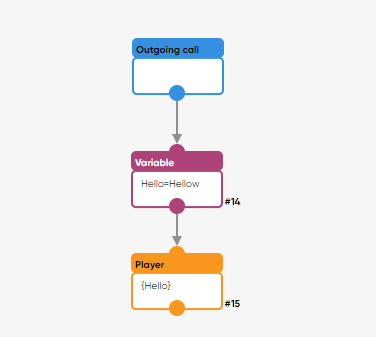
As a result you will have a scenario that will meet the following requirements: a subscriber answers the call and the robot says ‘Hello’.
Example. For instance, there is a variable that has been assigned a value, and we need to extract information from it:
Value in the variable:
var1 =
{
    "dateTimeFrom":"26.06.2024",
    "dateTimeTo":"26.06.2024",
    "type":"PERIOD"
}
Extraction of the nested object dateTimeFrom from var1:
var = var1.dateTimeFromResult:
var = 26.06.2024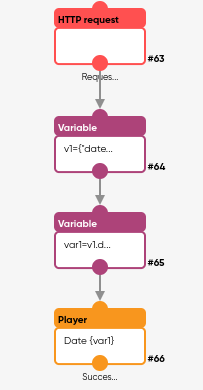
Another example of how you can use this block is when an action that a subscriber has chosen needs to be transferred to your server. To do this you can place the ‘IVR’ block under the ‘Outgoing call’ block and set a range of action options for a subscriber. For instance, the robot pronounces ‘Press 1 if…, press 2 if…’ and assign as the response options for a subscriber Key 1 and Key 2. Then you can create a variable ‘Select’ and put into the scenario two ‘Variable’ blocks for each key. In each block setting you can choose the variable ‘Select’ and for one block assign the value Key 1 and for another block the value Key 2. After that connect each block with the corresponding option of the ‘IVR’ block. Below it you should place and setup the ‘HTTP-request’ block to transfer a response that the subscriber has chosen to the server.
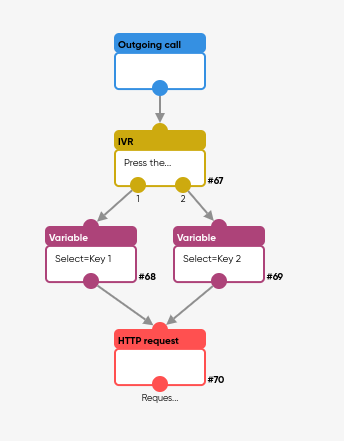
The use case in the array. Processing an array that comes, for example, from an HTTP request:
var1 =
{
  "name":"John",
  "age":30,
  "cars":[ "Ford", "BMW", "Fiat" ]
}
Specify in the fields:
- An assignable variable, for example: var1;
- Nested object: cars[1].
Result: «BMW».
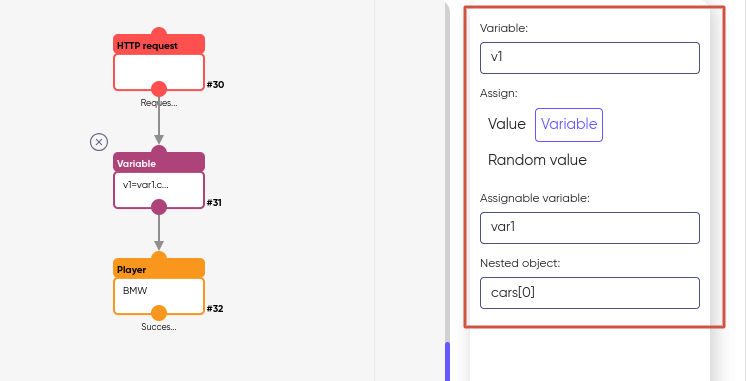
The second option. It is recorded and saved in var1:
[
{
   "name":"Ford",
   "val":"John",
   "price":"1000",
   "cars":[ "Ford", "BMW", "Fiat" ]
},
{
   "name": "BMW",
   "val":"Jack",
   "price":"2000",
   "cars":[ "Ford", "BMW", "Fiat" ]
},
{
   "name": "Fiat",
   "val":"Nik",
   "price":"3000",
   "cars":[ "Ford", "BMW", "Fiat" ]
}
]
To find cars «Ford», you need to specify the following in the script fields:
var1[0].cars[]To do this, specify in the fields:
- In the «Variable» set: var1;
- Nested object: [0].cars[0].
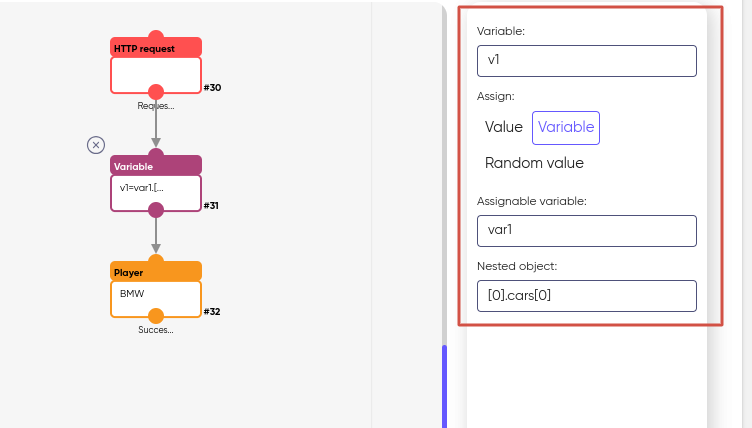
This will form the element of the array var1[0].cars[0].
Random value
If you want some kind of «Random value» to be passed to your variable, then you need to select the tab of the same name in the settings block for the «Assign» operation.
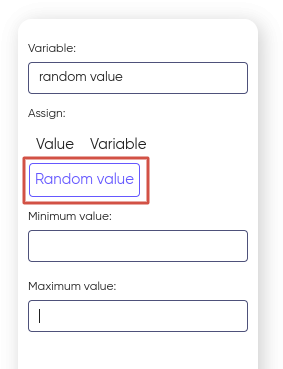
A random value is a value that is selected from a certain set according to a certain probability distribution.
For example, if the interval is set from 10 to 50, then a random number will be selected from this interval so that it lies between these two values, including them.
When generating a random number in a certain range, a variable will be assigned a random value in the range from «Minimum value» to «Maximum value».
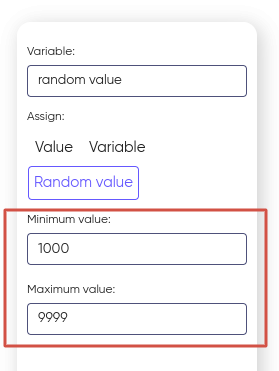
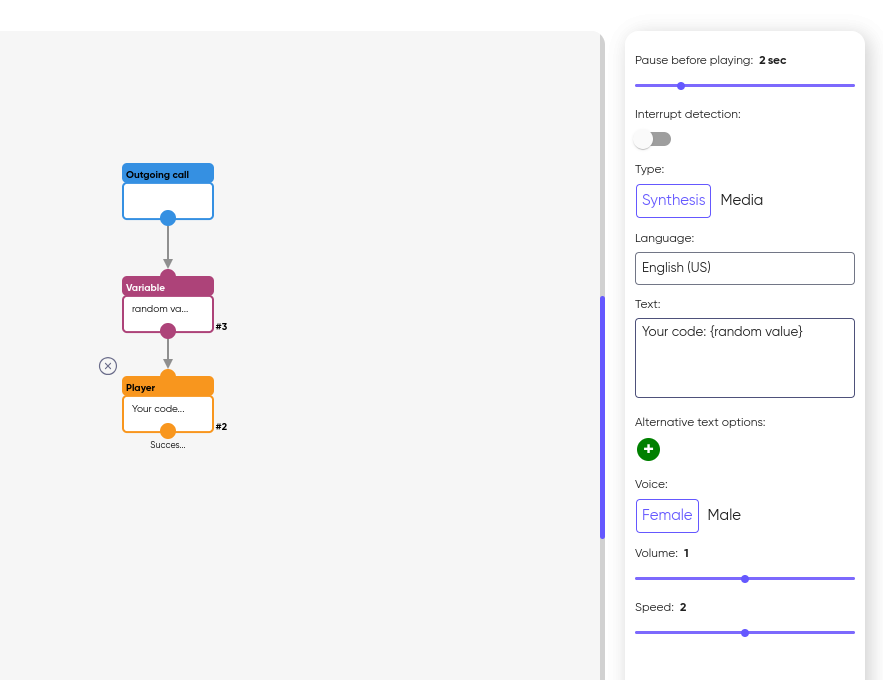
Example of a scenario when selecting a «Random value»: